

Word/Excel Lab
- algarant21
- Mar 8, 2021
- 3 min read
Table of Contents
Software
Web Apps
Mobile Apps
Local Applications
PC Software Installation
Mac Software Installation
Portable Software
Install on Portable Software
Spreadsheets vs. Databases
Works Cited
Web Apps
Web apps are applications that are accessible online through a Web browser, such as Google Chrome, Internet Explorer, Mozilla Firefox, and Safari (Apple). Web apps generally do not require installation of software on the local computer. Given that Web apps are accessible through Web browsers, your local computer/device must have a browser and internet connection.
In a library or information organization Web apps play an important role for patrons who use the computers/devices provided by the library to access information without having to take time to install software. Additionally, the information is available from any location or device with internet access by simply going to the website. Examples of useful Web Apps are Google Docs and Sheets. Outside of patron use, web apps help promote collaboration which is important in a library system or global library communications.
Mobile Apps
Mobile Apps are used for mobile devices, or more appropriately stated, handheld devices, such as tablets and phones. These apps are used in place, or in addition, of web apps on mobile devices. Apple was the leading company in creating Mobile Apps. These mobile apps are typically focused to a specific function such as to play media.
Mobile apps are downloaded, or installed on the handheld device, although some mobile apps require internet connection. These are considered “hybrid” apps as in they are housed on the handheld device but the data is accessed from the Web using cellular data.
On apple phones, mobile apps can be accessed and downloaded from the App Store. Those which are not available through the App Store, require a device to be “jailbroken.” This makes a change to the device which is not authorized.
Mobile apps are important to libraries as libraries begin to expand their services within the technology realm. Mobile apps are gaining a significant importance in daily life. Libraries may utilize Mobile apps to allow patrons to keep up to date on their book due dates, access the catalog, place books on hold, etc.
Local Applications
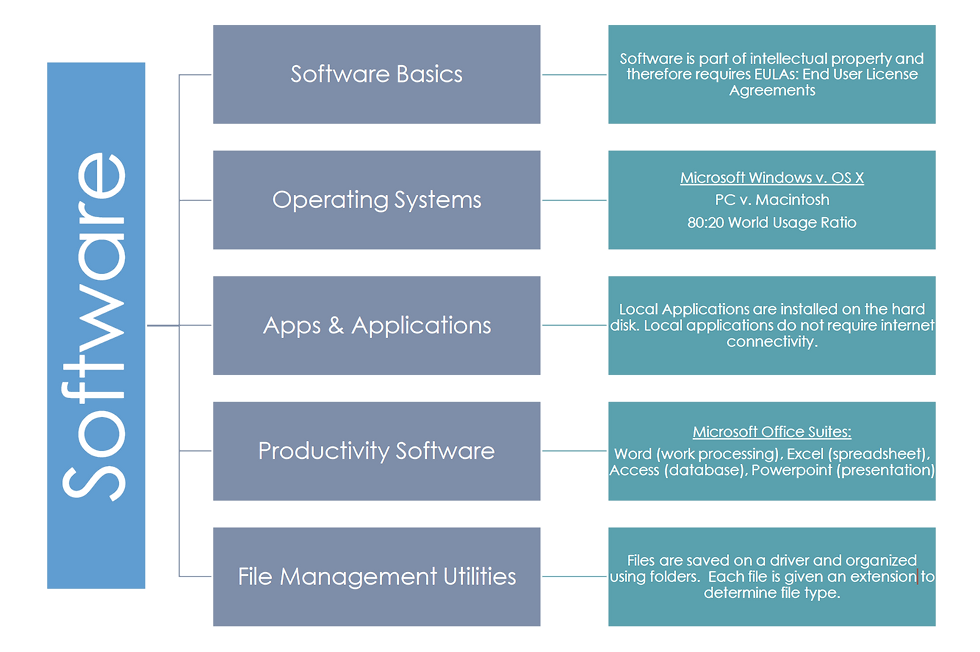
Local applications are installed onto a computer. The software is held on the hard disk, run on the RAM, and accessed by the microprocessor. Applications on a Mac have an extension name typically ending with .app and on a Microsoft Windows PC, applications are coded with an .exe extension.
PC Software Installation
Software that is to be installed on a PC includes a setup program that will automatically guide user through the installation process. The process typically involves the following:
Copy files: copies the application from either the CD or DVD onto the hard disk.
Unzip files: some files are compressed to fit on the software installer (CD).
Check resources: the installer makes sure that the computer has the proper operating requirements for the software.
Select device drivers: analyzes and selects the proper driver in order to run the installed software.
Find players: checks for the required drivers/players in order to run the program being installed.
Update the Registry: adds the installed program to the start menu for program access.
Update the desktop: places a quick icon on the desktop for access. (desktop is the main/start screen)
Software can be installed from a downloaded file from the Web. The software is typically downloaded as a DLL zipped file into a download folder located on your device. Once this is access, the setup manager will begin installation.
Mac Software Installation
Software installation for a Macintosh computer is quite easy to install. These downloads are stored as a DMG, or “disk image.” Once it is properly downloaded and installed you drag the APP file into applications folder. These applications can be accessed from the Launchpad (screen which holds all your applications) or may be dragged to the Dock (area which holds applications to be displayed by user choice).
Portable Software
Portable software comes in the form of flash drives. This is used to either hold a copy of applications and data, or for removable storage of applications and data. Current trends are moving to data and applications being held on the “cloud” or web-based storage.
Flash drives allow users to have their data and use it on public or personal computers without saving/installing in an online (cloud) or local hard disk. This is particularly useful to those using library computers where personal files should not be saved on these shared devices.
Install on Portable Software
File install on a portable software device is simple. This is coined as “install-free” software. Simply, one must move the files to the portable software device by saving it on the removable disk rather than the computer hard disk.
Spreadsheets vs. Databases
Comparing & contrasting elements and uses of spreadsheet and databases.


The original project was re-formatted for this page. If you are interested in viewing the original document, please contact me.


Comments